WEBチェックインの操作案内
WEBチェックインは、スマートフォン専用の機能です。PCやタブレットではご利用いただけませんので、あらかじめご了承ください。
WEBチェックイン
-
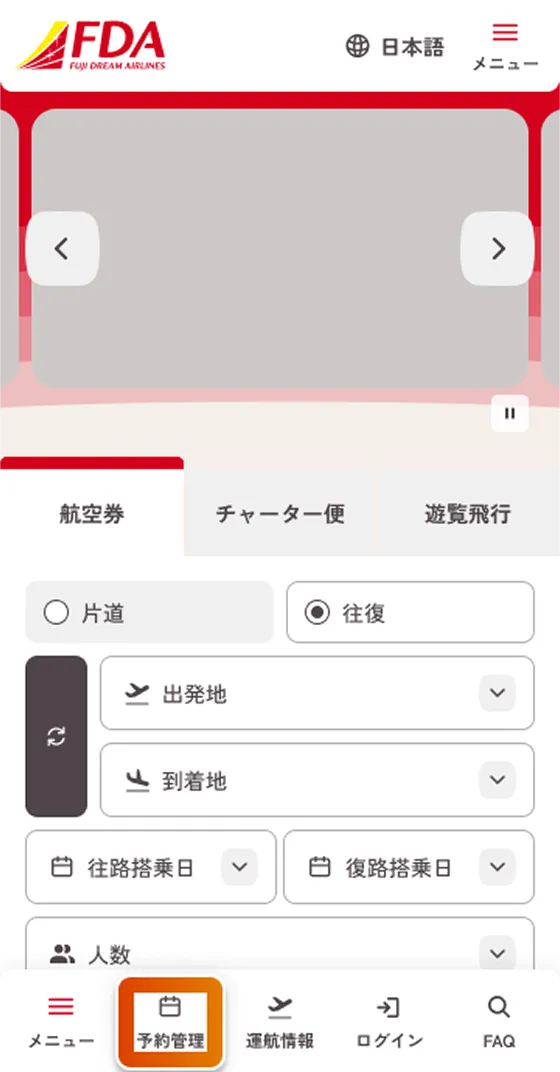
ホーム画面右上の「メニュー」またはボトムナビゲーション「予約管理」をタップしてください。
-
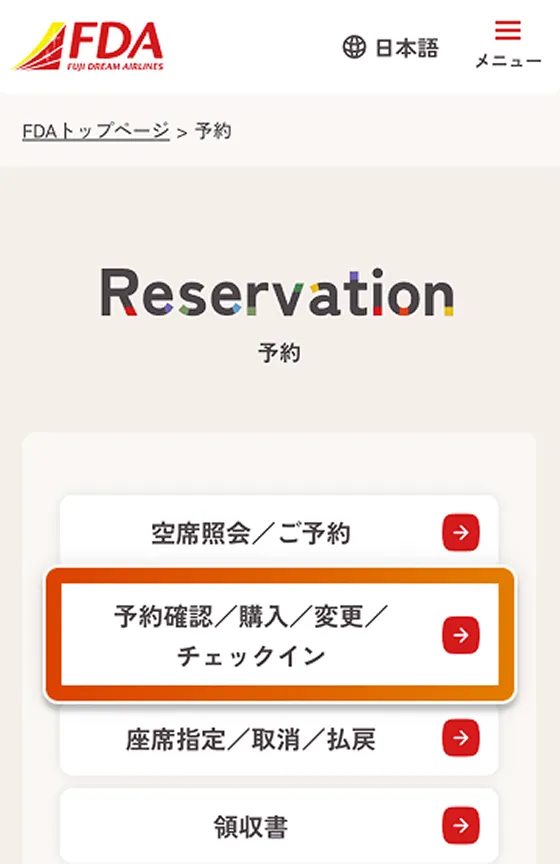
「予約管理」内の「予約/購入/変更/チェックイン」をタップしてください。
-
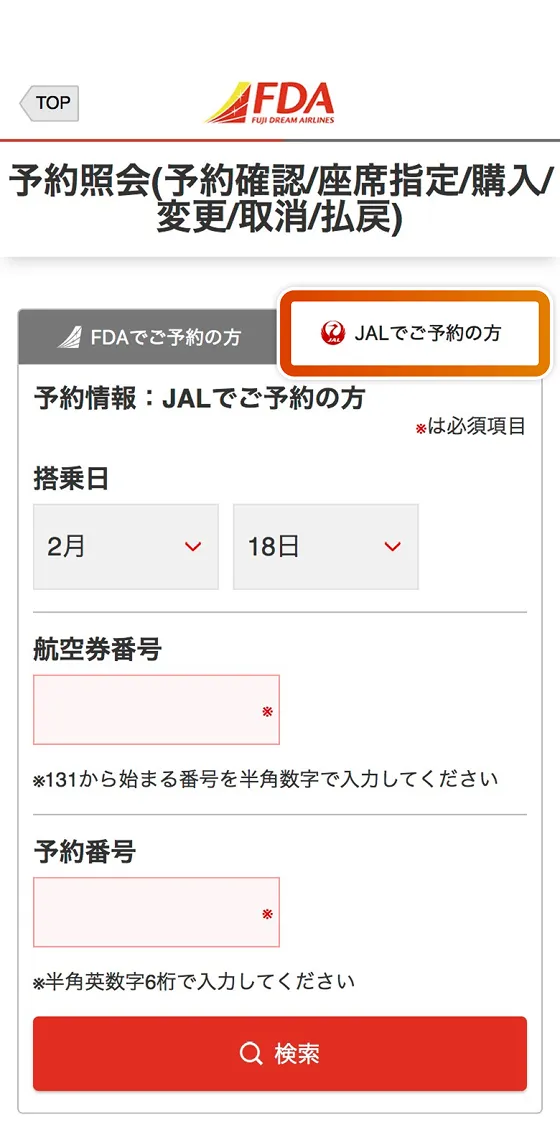
「JALでご予約の方」のタブを選択してください。
-
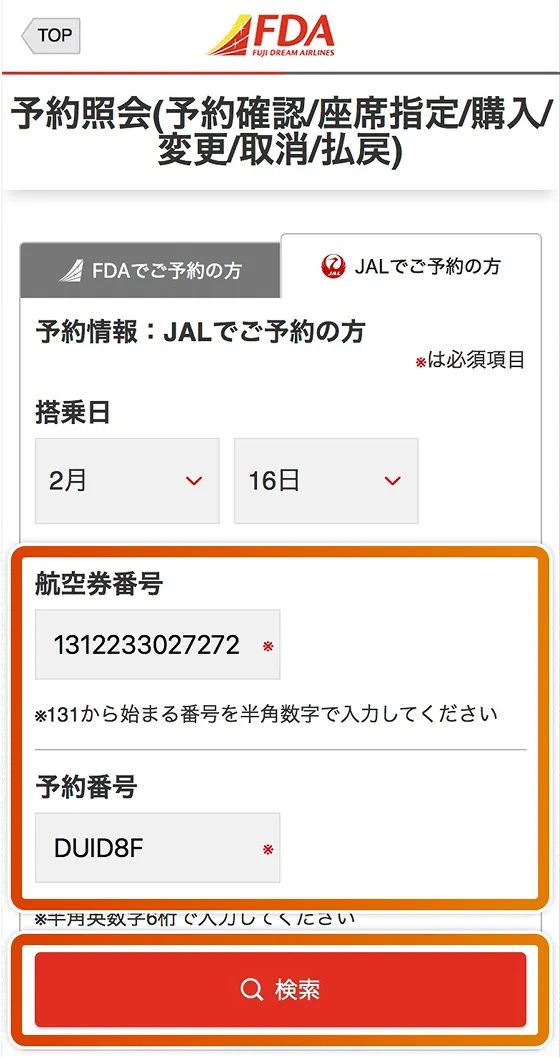
「航空券番号」「予約番号」を入力して、検索をタップしてください。
※当サイトでは搭乗日当日のWEBチェックインのみご利用いただけます。 -
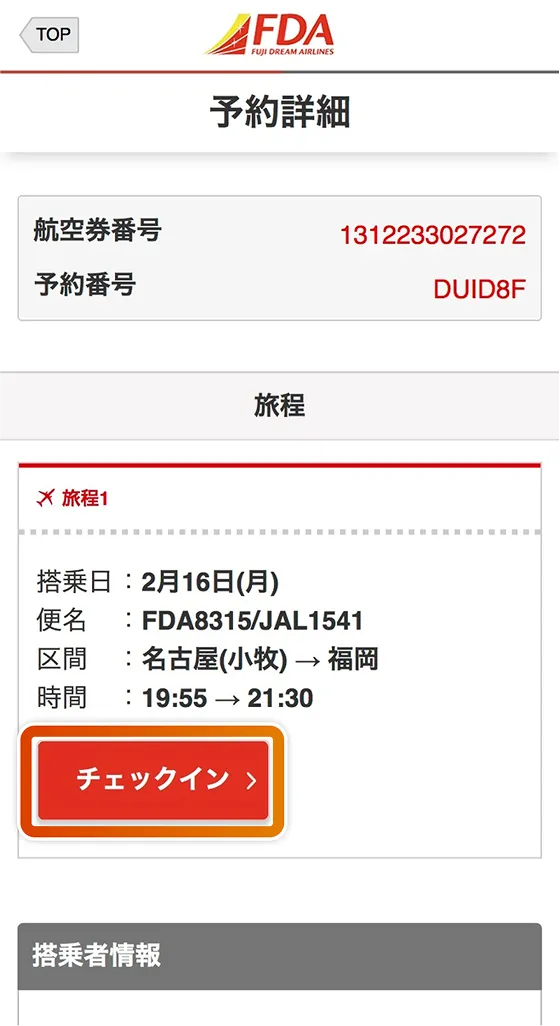
手続きを行う旅程の「チェックイン」をタップしてください。
-
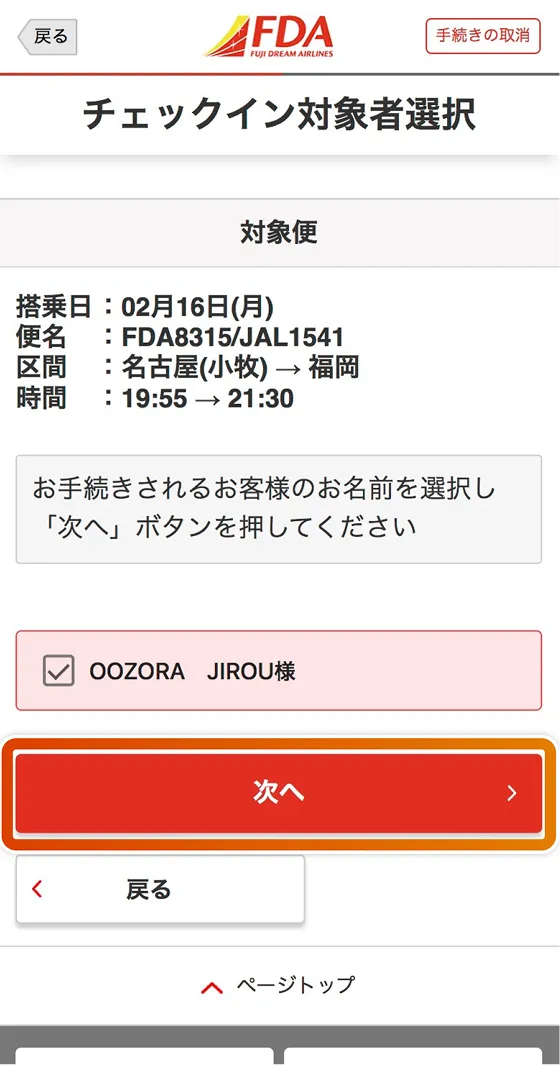
チェックインする対象者を確認し、「次へ」をタップしてください。
-
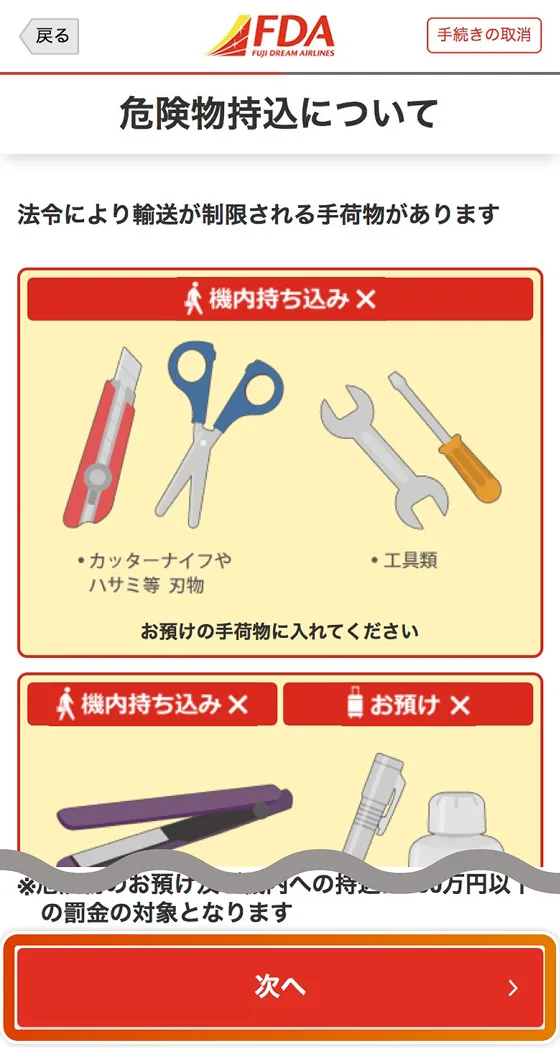
内容を確認し、「次へ」をタップしてください。
-
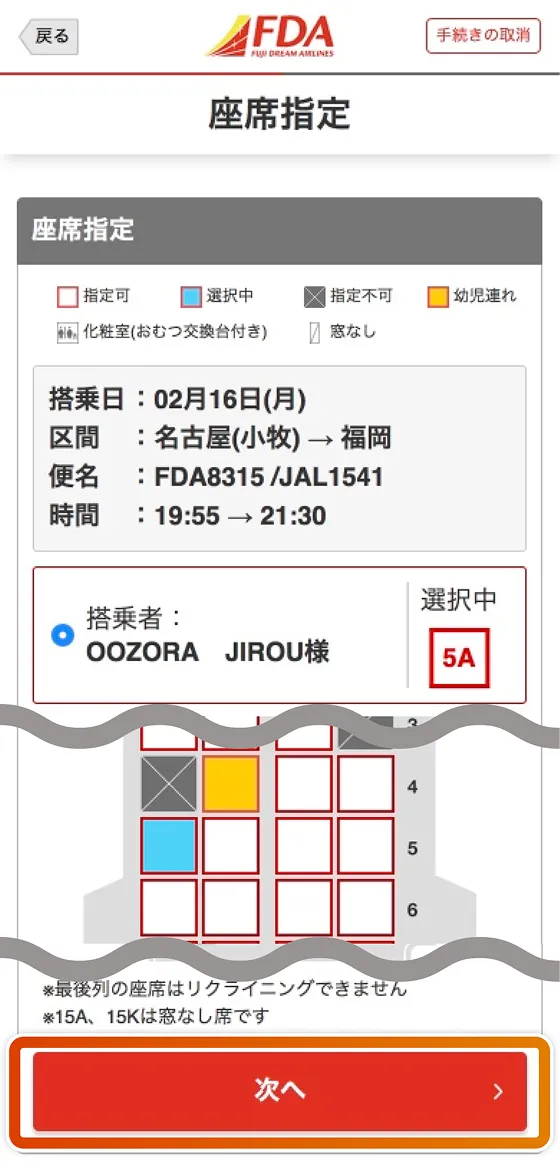
座席を指定・変更する場合は、空いている座席を選択してください。選択中の座席でチェックインする場合は、「次へ」をタップしてください。
-
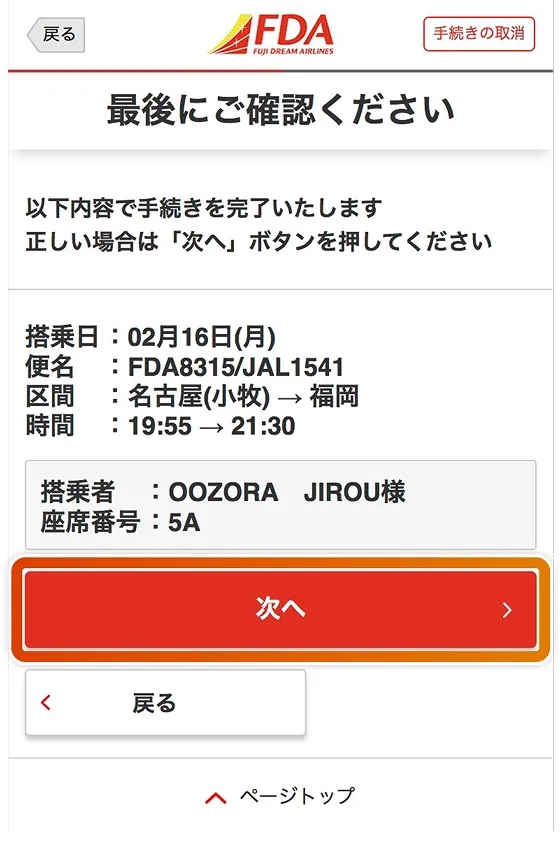
便名・区間・搭乗者・座席番号を再度確認し、間違いがなければ「次へ」をタップしてください。
-
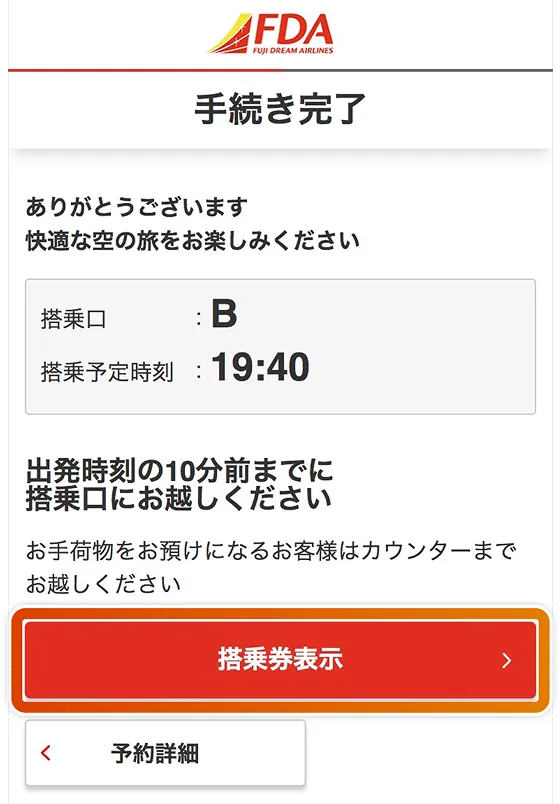
これでチェックインは完了です。出発時刻の10分前までに指定の搭乗口にお越しください。
搭乗券を表示する場合は「搭乗券表示」をタップしてください。 -
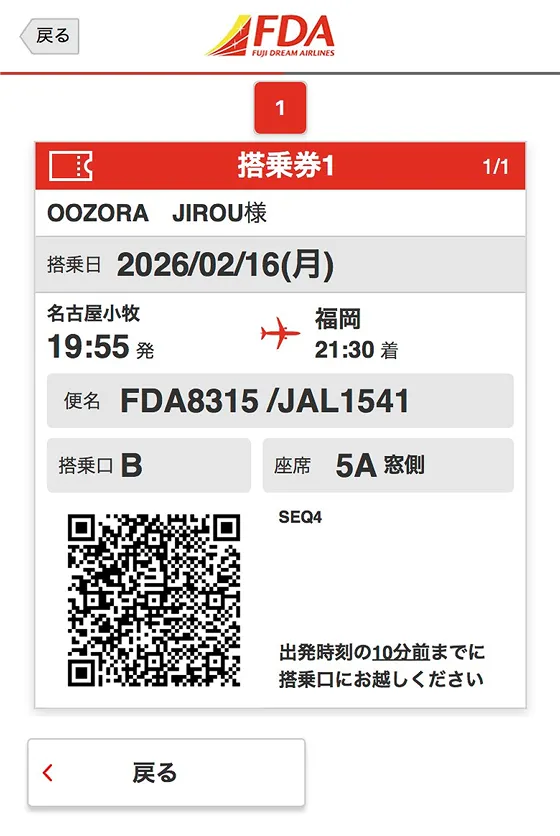
搭乗券が表示されますので保安検査場や搭乗口ではこちらの画面を空港係員へ提示してください。


搭乗券の表示(WEBチェックイン完了後)
-
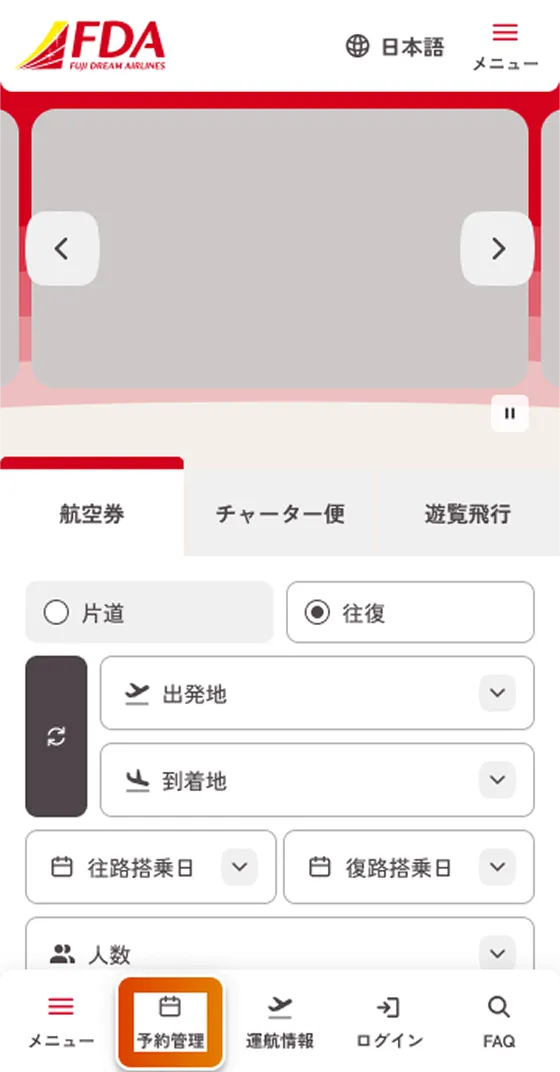
ホーム画面右上の「メニュー」またはボトムナビゲーション「予約管理」をタップしてください。
-
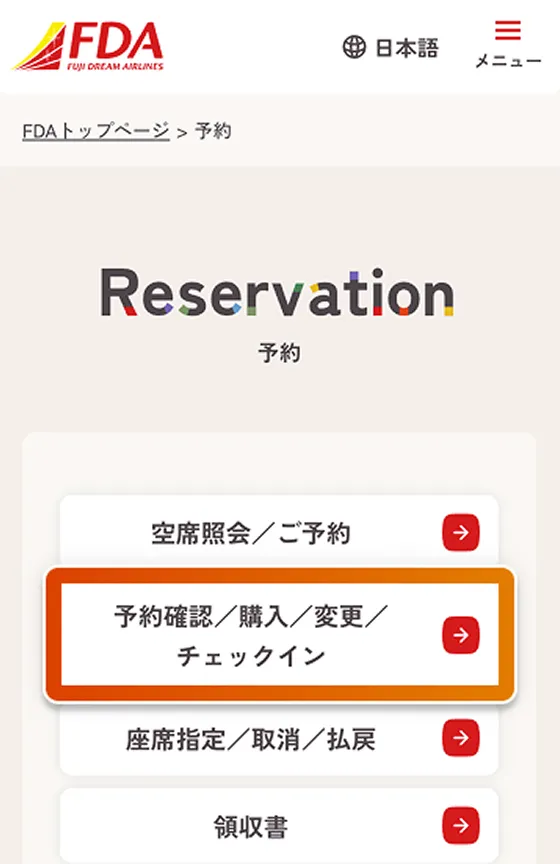
「予約管理」内の「予約/購入/変更/チェックイン」をタップしてください。
-
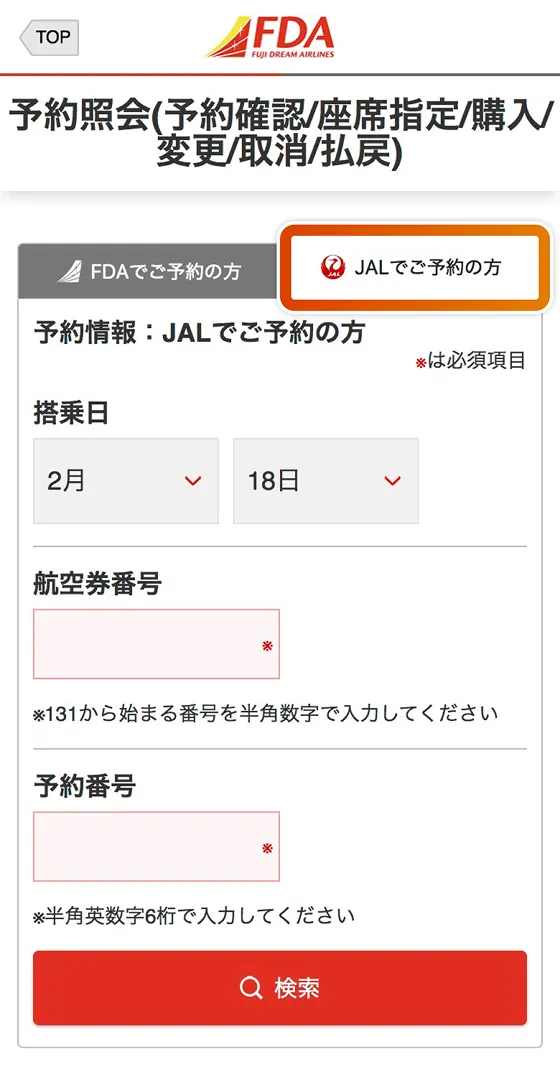
「JALでご予約の方」のタブを選択してください。
-
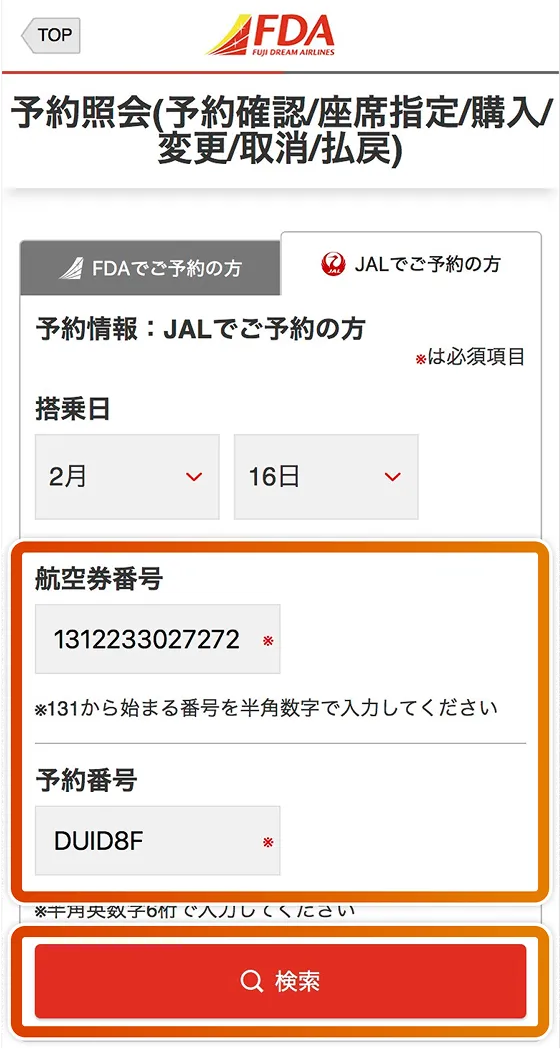
「航空券番号」「予約番号」を入力して、検索をタップしてください。
※当サイトでは搭乗日当日のWEBチェックインのみご利用いただけます。 -
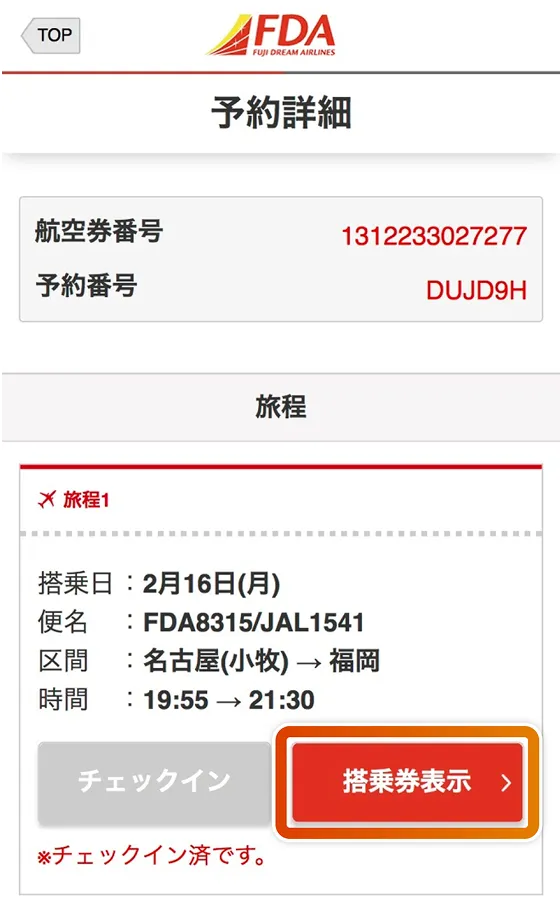
搭乗券を表示する旅程の「搭乗券表示」をタップしてください(ボタンはWEBチェックイン完了後に表示されます)。
-
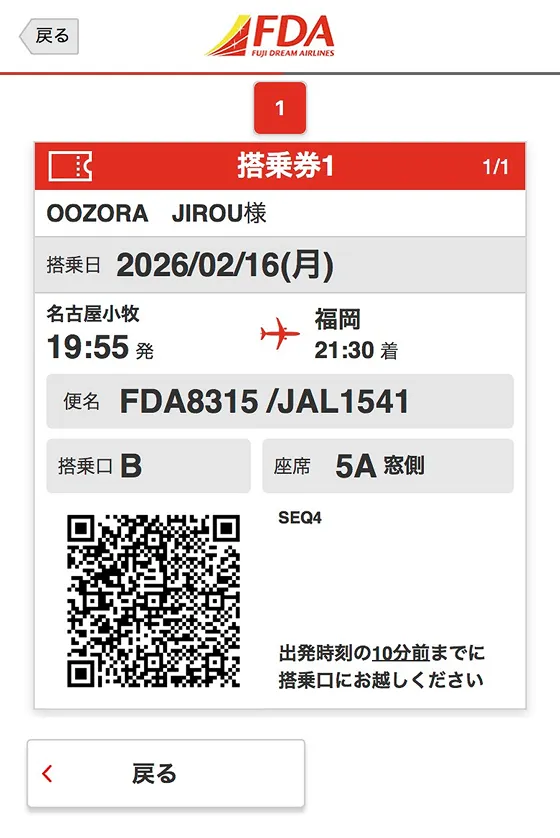
搭乗券が表示されますので保安検査場や搭乗口ではこちらの画面を空港係員へ提示してください。


